Initial registration in Cisco Duo
Before you can use Cisco Duo and thus multi-factor authentication, you must first register a second factor.
Prerequisites
In order to carry out the following steps, you must be on the UoC campus with any computer (active WLAN or LAN connection to the UKLAN) in order to register once in Cisco Duo.
To use the Duo Mobile app as a second factor, you need a mobile device—typically a smartphone or tablet—that meets one of the following requirements:
- Android 11 or higher
- iOS 16.0 or higher
- iPadOS 16.0 or higher
- watchOS 10.0 or higher
You can find more details on the requirements for Android here and for iOS (iPhone/iPad) here.
Please note that a screen lock (e.g. PIN, password, fingerprint, etc.) must be set up on the mobile device used. Otherwise, authentication attempts will be rejected. Authorization attempts from rooted devices will be rejected automatically. Mobile devices from Huawei are not supported.
If you do not have a mobile device compatible with these requirements, please contact the ITCC Helpdesk.
Procedure
If you are setting up using a single mobile device, please follow these instructions:Initial registration of Cisco Duo with mobile device
Otherwise, please follow the steps below:
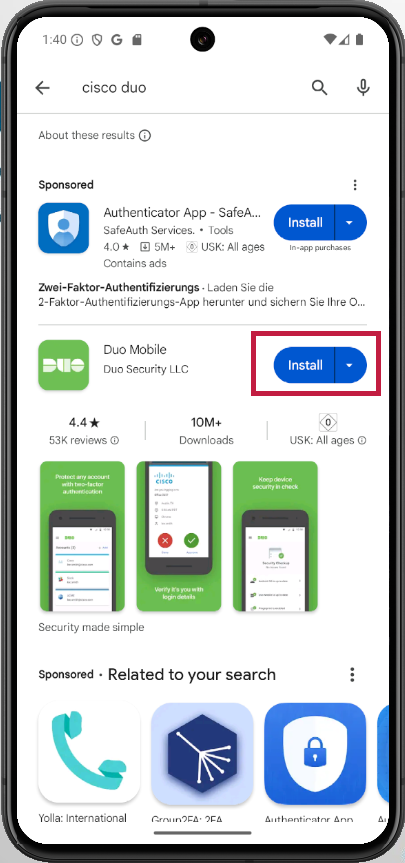
You will now need to install the "Duo Mobile" app on your mobile device for the next steps (see requirements). You can find the app in the respective play or app stores.
Android: https: //play.google.com/store/apps/details?id=com.duosecurity.duomobile&hl=de
Apple: https: //apps.apple.com/us/app/duo-mobile/id422663827?mt=8
Registration in Cisco Duo
Please ensure that you complete the following steps without interruption (e.g. by closing the browser or the respective tab)! Failing to do so might lock you out of your account.


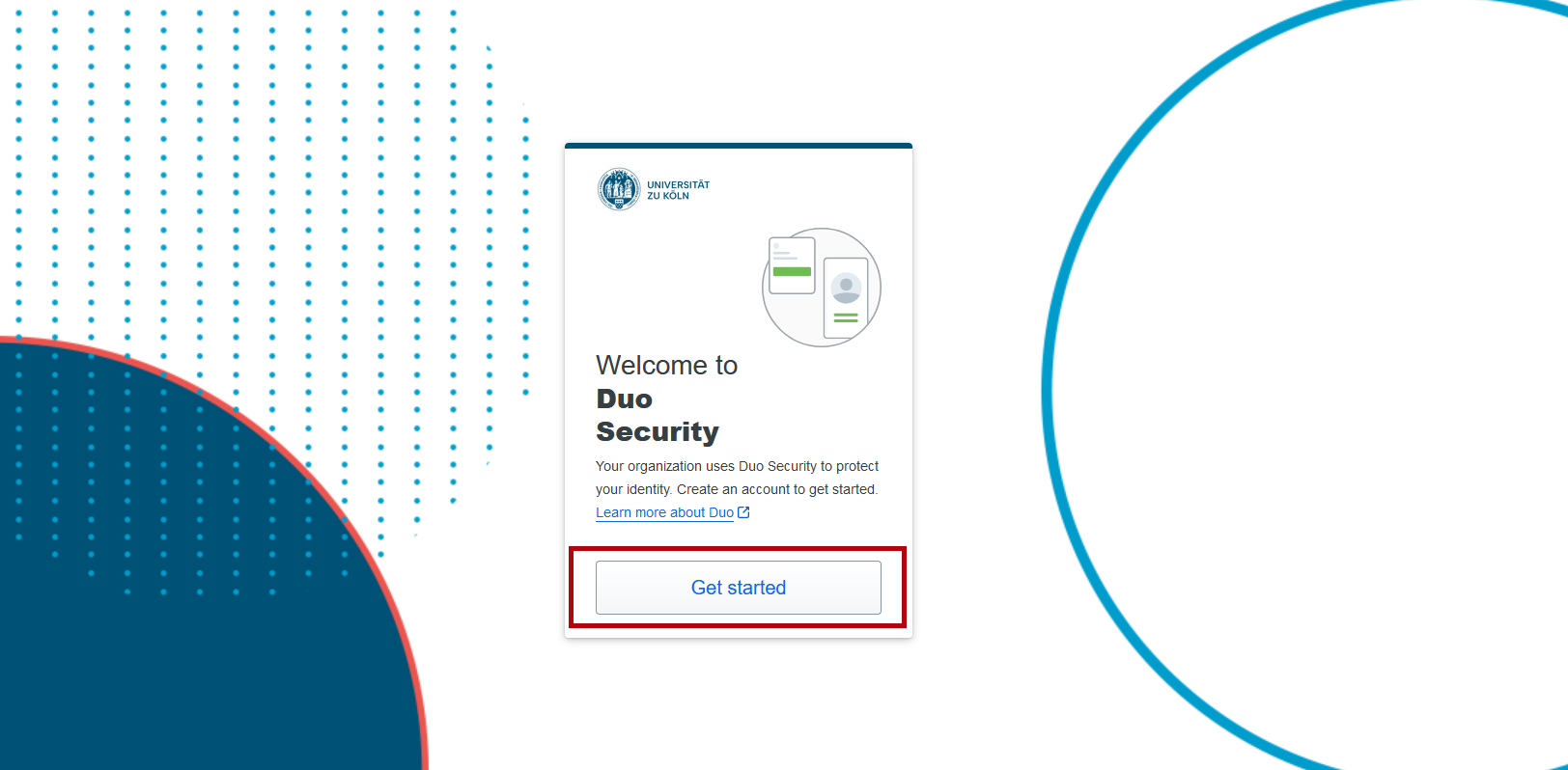

- Initial registration for Duo is only possible via devices located on the UoC campus (not from home or on the road via VPN). If this is the case, first go to the website https://mfastart.uni-koeln.de.
- Confirm the message that appears with "Okay" [Fig. 1]. You can now change the language in the top-left corner by clicking on "EN" [Fig. 2].
- Then log in with your user name and the corresponding password [Fig. 3].
- Now click on "First steps" [Fig. 4] and then select the "Duo Mobile" option [Fig. 5].
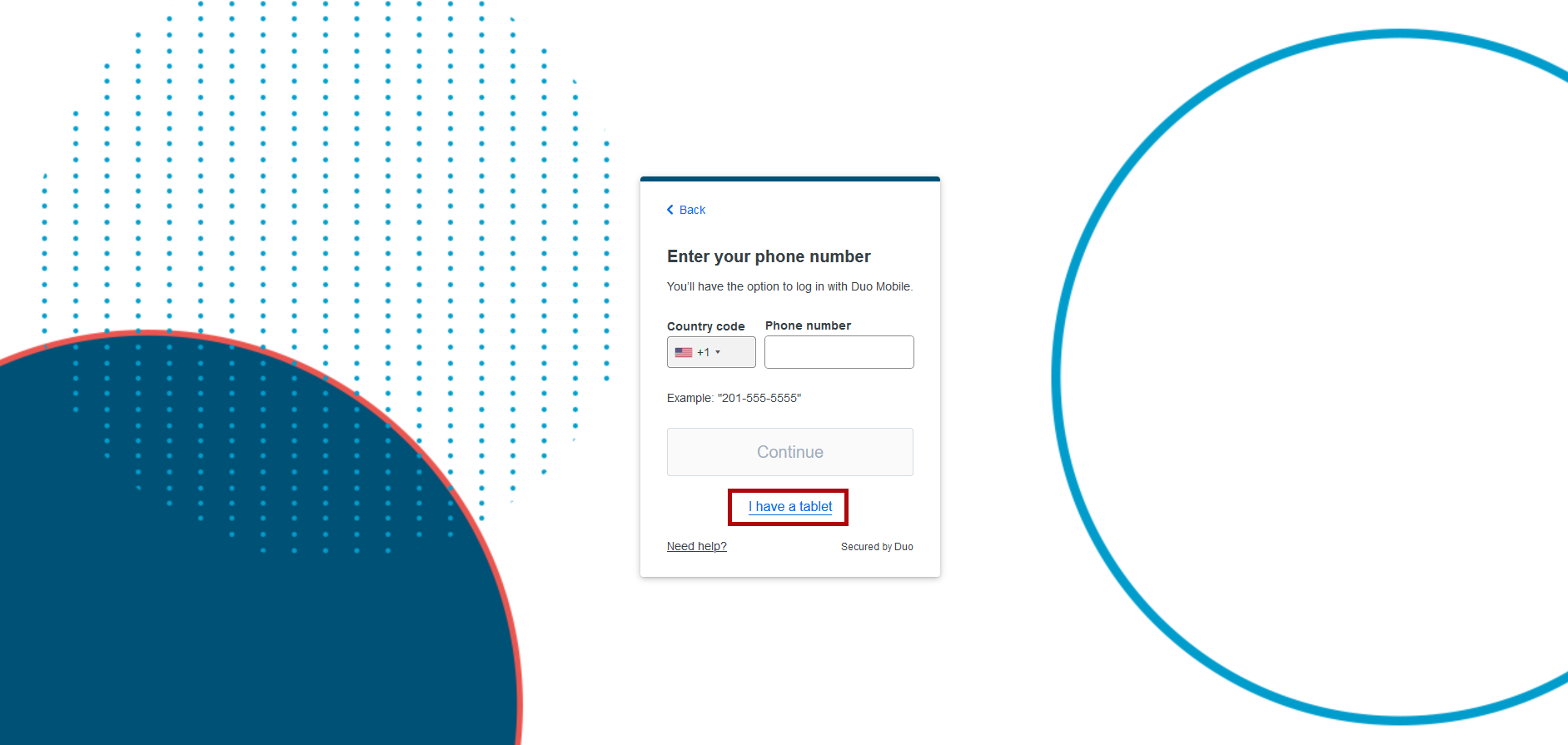
- Regardless of the device used, please select "I have a tablet" [Fig. 6]. Your telephone number is not required and is therefore not stored.

- Once you have successfully installed the "Duo Mobile" app, please click on "Next" [Fig. 1].
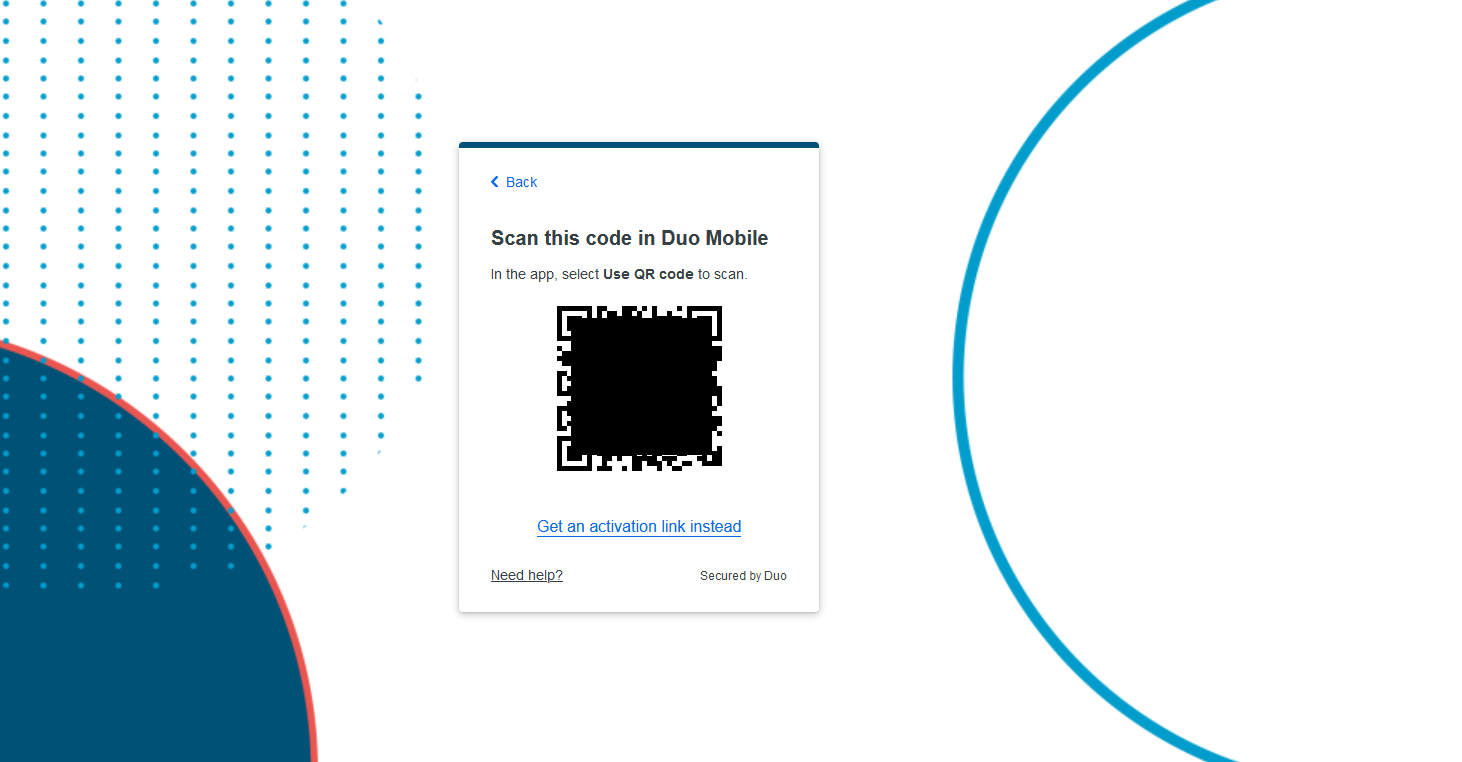
- Use your mobile device to scan the QR code that is displayed on the screen [Fig. 2]. To do this, open the "Duo Mobile" app and select "Use a QR code". Then point the camera of your mobile device at the QR code so that it appears in the square provided on the display of your mobile device.
- Then follow the instructions on the screen: Instructions: Device management - Add device.
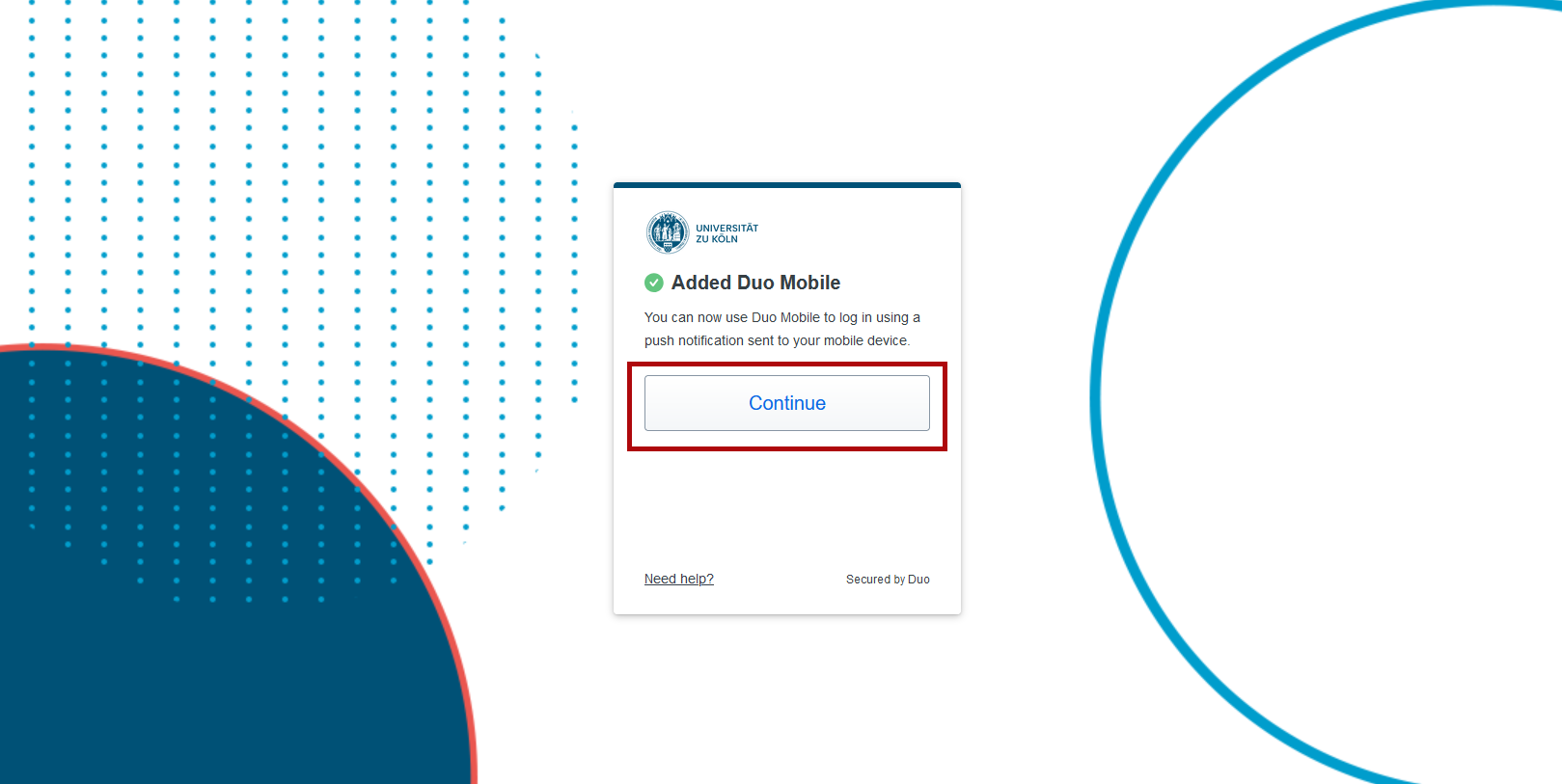
- You have now connected your mobile device to your account as a second factor. Click on "Next" [Fig. 3].
Further information
Device management
Questions?
FAQ
Contact
If you have any questions or problems, please contact the ITCC-Helpdesk