The University of Cologne is introducing multi-factor authentication (MFA) to decisively counteract the risk of cyber attacks and to intensify the protection of data and devices.
This involves one or more independent factors that must be used in addition to the user name and password in order to increase protection against unauthorized access to services, software and data.
What is Cisco Duo?
Multi-factor authentication (MFA) is implemented with Cisco Duo.
Cisco Duo is a system that includes several authentication options as a so-called second factor that can be used flexibly.
What authentication options does Cisco Duo offer?
Cisco Duo offers various options for using a second factor:
"Duo Mobile" app
FIDO2 key: In certain web-based logins, a FIDO2 key (e.g. YubiKey, Titan Security Key or similar) can also be used as a second factor. As this procedure is only available in web-based logins, a FIDO2 key can only be added later via the device administration. If you would like to use a FIDO2-Key as your only second factor, please contact our helpdesk. If you would like to add a FIDO2 key to your account as the sole second factor, please contact our helpdesk. Please note that we cannot provide technical support on how your FIDO2 key works, only on the general setup process with Duo. Please have a look at our dedicated instructions on that topic.
If you do not want to or cannot use an app or FIDO2 key, please contact the ITCC helpdesk.
Can I also use another authentication app (e.g. Google Authenticator)?
No, Cisco Duo does not support the use of other authentication apps. The Duo Mobile app and Duo's service are designed to work together. Duo Mobile can replace other passcode-generating apps for third-party accounts, but other apps cannot replace Duo Mobile.
Which services are secured with Cisco Duo?
The following services can currently be additionally secured with Cisco Duo:
Currently, only certain groups of people at the UoC can or must use Cisco Duo. You will be informed in good time when you can or must use Cisco Duo. You can determine whether you belong to one of these groups by whether a Cisco Duo query appears when you log in to the VPN service.
Please note! If your group is activated for optional use of Cisco Duo, the following applies: As soon as you have registered with Cisco Duo, the use of all connected services (e.g. VPN) is only possible with Cisco Duo. It is not possible to return to use without Cisco Duo.
Second factor
What is my second factor?
The “Second factor” refers to all authentication options (devices) that you have stored in Cisco Duo. You can view these in the self-service portal and add or remove new ones.
How do I add a second factor?
We have described how to add another device as a second factor in these instructions:
I cannot open the device management, but see the login page.
After you have logged in to the Slef Service Portal with your user name and password, please do not authenticate yourself via a second factor at first, but select "Manage devices" and only authenticate yourself in the next step. You can find step-by-step instructions here:
Your telephone number is not required and therefore does not need to be entered. Select "I have a tablet" instead. You can find illustrated instructions here:
I do not have the possibility to set up Cisco Duo on campus. How do I proceed?
Initial registration for Duo is only possible via devices located on the UoC campus (not from home or on the move via VPN).
If you are not located in the Cologne area and can register on the Cmapus, please contact the ITCC helpdesk.
"Duo Mobile" app
What are the system requirements for Duo Mobile?
To use the Duo Mobile app on an end device as a second factor, at least one of the following requirements must be met:
Android 11 or higher
iOS 15.0 or higher
iPadOS 15.0 or higher
watchOS 4.0 or higher
Your devices must be protected by a screen lock e.g. PIN, pattern, fingerprint etc. Otherwise your authentication attempts will be rejected. Authentication attemps from rooted devices will also be rejected.
I do NOT have a compatible mobile device for the "Duo Mobile" app? What should I do?
May i use my private smartphone if i don't have a work smartphone?
Yes, you may use your private smartphone to install and use Duo Mobile.
Which data are collected by Duo Mobile?
The Duo Mobile app collects some data that is required for secure operation. The following data can be viewed by authorized ITCC employees and is only viewed by them to process support requests or to assess individual account security. It is expressly not passed on to other university departments.
The data collected and transmitted by the app includes:
Smartphone model
Installed Android or iOS version
Timestamp of the last connection to the server
Data about your smartphone's security status
Integrity of the system/‘root access’ (devices that do not pass the Play Integrity check are rejected)
Encryption status (is the smartphone data encryption enabled? Current smartphones encrypt their owner's data by default)
Lock screen status (is the device always protected by PIN/password/pattern or similar or accessible to everyone? Devices without a configured lock screen are rejected for security reasons)
Status via biometric protection (is fingerprint/face recognition protection functions activated on the device?)
Once you authorise one of your logins via Duo Mobile, the IP address of the smartphone is recorded at the time of authorisation
The IP address could be used to draw conclusions about your Internet service provider (i.e. mobile phone provider or provider of the Internet connection)
If you have any questions, please do not hesitate to contact us.
Various
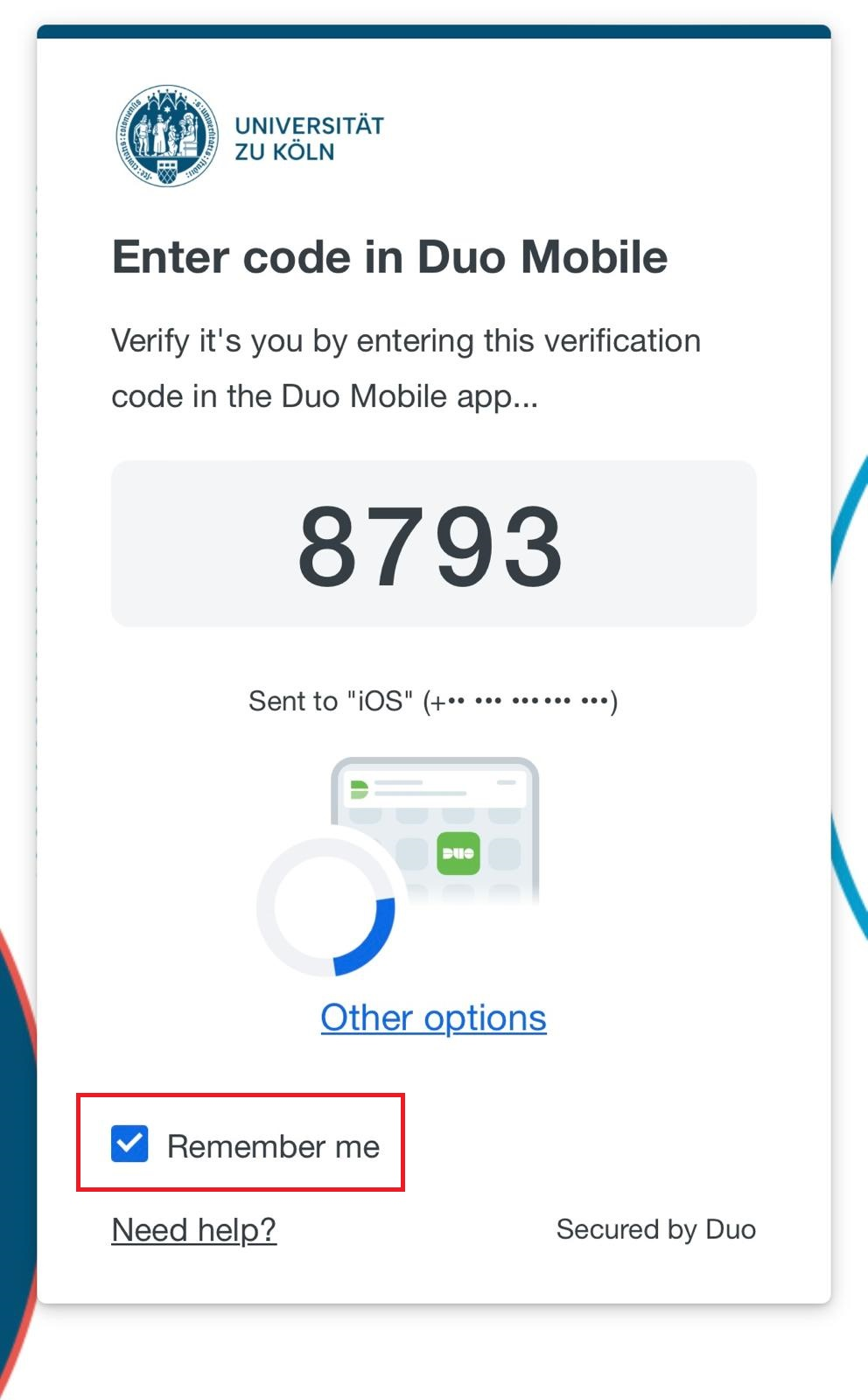
What does “Remember me” mean in the Cisco Duo dialog window?
If you activate this option, you do not have to use a second factor for 9 hours when you log on again to a service secured by Cisco Duo. It is sufficient to log in to Shibboleth using a user name and password.
Please note: This only applies to the computer (browser) on which you have authenticated yourself using the second factor.
What types of authentication are available in Duo Mobile?
There are two different types of authentication depending on the intended use:
“Duo Push": The Duo Mobile app displays a push notification on the mobile device set up, which you use to confirm your identity by clicking on ‘Approve’.
“Duo Mobile Passcode": Cisco Duo shows you a temporary passcode, which you enter in the app
Screenshot: Remember me
Hardwaretoken
Ich möchte die Ausleihe meines Hardwaretokens verlängern. Wie gehe ich vor?
Eine Verlängerung können Sie bis zu fünf Mal bei den Kolleg:inenn der Universitäts- und Stadtbibliothek vornehmen. Die Möglichkeiten finden Sie auf der Webseite: