Microsoft 365 for employees
Microsoft 365 Apps for Enterprise and Office Mobile Apps for official use.
Employees of the University of Cologne (except the Faculty of Medicine) can use Microsoft 365 Apps for Enterprise and Office Mobile Apps for official use on compatible end devices.
The Office package for local installation includes the following programs, among others:
- Word
- Excel
- PowerPoint
- Outlook
- OneNote (not available for mobile devices)
- Access (PC only)
- Publisher (PC only)
Currently, no other Microsoft 365 cloud services are available!
For non-local data storage, we recommend using the university cloud storage "sciebo" for data protection reasons.
Pay attention to the terms of use of sciebo, especially if personal data of third parties are used, and store files of important documents locally additionally.
sciebo can also be selected as a (storage) "location" in the various Office apps on iOS, so that files can be opened and saved directly from sciebo via the respective app. How you can set this in the app, you will find in this tutorial.
Authorization of use
The following groups of people are entitled to use this service:
- Staff
- Professor
- Research assistant
- Visiting scientist
- Research assistant
- Lecturer (without ZfL and Faculty of Humanities)
- Junior professor
- Substitute professor
- Student assistant
Establish eligibility:
- Log in at: https: //kim.uni-koeln.de/idmdash/#/profile with your UniKIM account.
- Check under "University Affiliation" to which group of people you belong.
Download, installation and activation
Please note: This service may not yet be available for managed devices at your institution. These are usually devices on which you do not have extended rights, e.g. to install programs. If in doubt, please contact your IT contact.
Download and installation
You can find the installation files for all supported operating systems via the Microsoft portal.
-
Logging in to the Microsoft portal with your university user ID
-
Log in to the authentication service (Shibboleth) of the university with uniKIM-ID and personal password.
-
Click on "Install Apps" and "Microsoft 365 Apps" in the opening portal to start downloading the software
-
Install the software on your end device
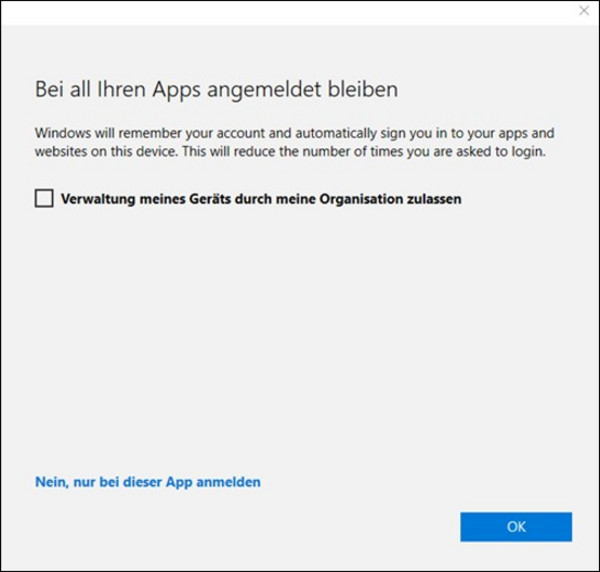
Dialog box: Allow my organization to manage my device
Unfortunately, this dialog box cannot be turned off. We are not interested in managing your device. Please uncheck "Allow my organization to manage my device".
For Android/iOS, it is recommended to install the applications directly from the Google Play Store or the Apple App Store. Make sure that the provider of the application is "Microsoft Corporation".
If you already have an old Office installation on your PC or Mac, it is recommended that you uninstall it first. Microsoft 365 Apps for Enterprise cannot be installed at the same time as older versions of Microsoft Office. When installing Microsoft 365 Apps for Enterprise, any existing older versions of Microsoft Office will be uninstalled automatically.
If you experience any problems with the installation, please use the Office Uninstall Support Tool with "Option 2 - Completely uninstall Office using the Uninstall Support Tool" before trying again.
In particular, if you want to use Microsoft Visio or Microsoft Project in addition to Microsoft 365 Apps for Enterprise, you will need the latest version of each of these programs. Microsoft Visio and Microsoft Project are not part of Microsoft 365 Apps for Enterprise and may have to be ordered additionally for a fee via the Software Shop. If you already have a license for versions 2016 and newer and have problems with the installation, please contact us.
Registration and activation
For license activation, you only need to log in to the respective Office program with your user ID.
Conditions of use
The license/software may only be used in an official and not in a private context.
Contact
If you have any questions or problems, please contact the ITCC-Helpdesk